
Imagine building a magnificent storefront in the middle of a dense, unmapped forest. You have the best products, a stunning design, and competitive prices. However, if there are no roads or signs leading to your door, customers cannot find you. In the digital world, Google is the traveler, and your website is the store. To help Google find every aisle and product on your shelf, you need a map.
This map is known as a shopify sitemap.
For e-commerce store owners, technical SEO can often feel overwhelming. Between canonical tags, schema markup, and site speed optimization, it is easy to get lost in the jargon. However, the sitemap is one of the most fundamental pillars of search engine optimization. It acts as a direct line of communication with search engines, telling them exactly where your content lives and how to access it.
In this guide, we will dive deep into the world of the Shopify sitemap. We will cover how to find it, how to submit it to Google Search Console, and, most importantly, how to optimize your store’s architecture to ensure your sitemap works as hard as you do.
I. What is a Shopify Sitemap?

At its core, a sitemap is a file located on your website that provides search engines with information about the pages, videos, and other files on your site, as well as the relationships between them. Search engines like Google read this file to crawl your site more intelligently.
Specifically, a shopify sitemap is an XML file (Extensible Markup Language). Unlike an HTML sitemap, which is designed for human visitors to navigate a website, an XML sitemap is written strictly for search engine bots.
1. The Structure of a Shopify Sitemap
Shopify handles sitemaps differently than some other Content Management Systems (CMS) like WordPress. Shopify automatically generates a sitemap for every store. You do not need to install a plugin or write code to create one.
However, Shopify uses a "parent-child" structure to manage this efficiently.
When you access your primary sitemap, you are actually looking at an index file. This parent file links to separate, smaller sitemaps for different types of content. This is done to ensure the file does not become too large for Google to process. Your Shopify store generally includes links to four distinct sitemap groups:
- Product Pages: Contains URLs for all your individual product listings.
- Collection Pages: Contains URLs for your product categories.
- Blog Posts: Contains URLs for your articles and news updates.
- Static Pages: Contains URLs for pages like "About Us," "Contact," and "Shipping Policy."
For example, if you have thousands of products, Shopify might generate sitemap_products_1.xml. If you exceed 50,000 URLs (the limit for a single sitemap file), Shopify will automatically create sitemap_products_2.xml.
This automation is a massive advantage for Shopify merchants. It means that as you add new inventory, the platform dynamically updates the file without you lifting a finger.
II. Why is the Shopify Sitemap Crucial for SEO?
You might be wondering, "If Google is so smart, why do I need to give it a map?"
While it is true that Google crawlers are sophisticated, they are not omniscient. They work on a "crawl budget." This refers to the amount of time and resources Google is willing to spend crawling your specific website. If you have a large store with thousands of SKUs, Google might not find every single product just by following links from your homepage.
Here is why the shopify sitemap is vital for your store's success:
-
Faster Indexing of New Products When you launch a new collection, you want it to appear in search results immediately. Without a sitemap, Google relies on internal linking to discover these new pages. If the new page is buried deep in your site structure, it could take weeks to be discovered. A sitemap alerts Google that a new URL exists.
-
Deep Content Discovery Many e-commerce sites have "orphan pages" or pages that are not well-linked from the main navigation menu. A sitemap ensures that even these isolated pages are presented to the crawler.
-
Handling Large Archives If your store has been around for a while, you likely have archived blog posts or older collections. Sitemaps help keep these pages in the search index, ensuring you do not lose traffic to legacy content.
-
Rich Media Information Shopify sitemaps often include additional information about images associated with your products. This is critical for Image Search SEO, which is a significant driver of traffic for visual industries like fashion or home decor.
III. How to Find Your Shopify Sitemap
Locating your sitemap is incredibly straightforward. Because Shopify creates this automatically for every store, it always lives at the same URL path.
To find yours, simply open your web browser and type your domain name followed by /sitemap.xml.
Example:
https://your-store-name.com/sitemap.xml
When you hit enter, you will see a page that looks like a list of code. Do not panic; this is exactly what it is supposed to look like. You will see lines of text referencing other files, such as:
-
https://your-store-name.com/sitemap_products_1.xml -
https://your-store-name.com/sitemap_pages_1.xml -
https://your-store-name.com/sitemap_collections_1.xml -
https://your-store-name.com/sitemap_blogs_1.xml
This confirms that your shopify sitemap is active and ready to be read by search engines.
IV. How to Submit Your Shopify Sitemap to Google Search Console
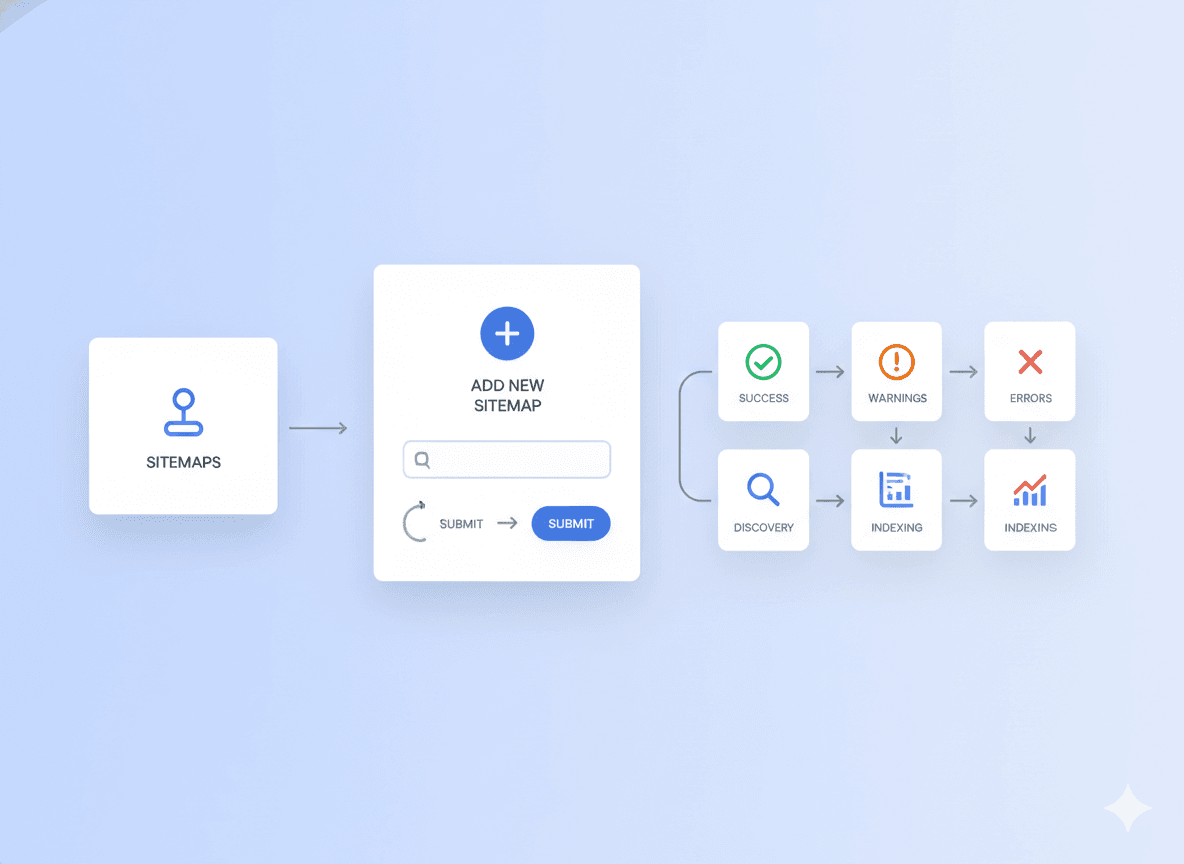 Finding the sitemap is step one. Step two is handing it over to Google. While Google will eventually find your sitemap on its own, manually submitting it via Google Search Console (GSC) speeds up the process and gives you valuable diagnostic data.
Follow this step-by-step guide to submit your sitemap:
Step 1: Verify Your Site with Google Search Console
If you have not connected your store to GSC yet, you must do that first.
- Go to Google Search Console.
- Click "Add Property."
- Enter your domain.
- Verify ownership (usually done by adding a meta tag to your Shopify theme code or via DNS verification).
Step 2: Navigate to the Sitemaps Report
Once you are logged into your GSC dashboard:
- Look at the left-hand sidebar menu.
- Under the "Indexing" section, click on Sitemaps.
Step 3: Enter Your Sitemap URL
You will see a section labeled "Add a new sitemap."
-
Your domain will already be pre-filled (e.g.,
https://truestorefront.com/). -
In the text box, simply type:
sitemap.xml -
Click the Submit button.
Step 4: Verify Success
After submitting, Google will process the file. You should see a status of "Success" appear in the list of submitted sitemaps. If you see "Couldn't Fetch," do not worry immediately. sometimes it takes a few hours for GSC to process the request. Wait 24 hours and check again.
Note: You only need to submit the main sitemap.xml file. You do not need to submit the individual child sitemaps (like sitemap_products_1.xml) separately. Google is smart enough to follow the links in the parent file.
V. Can You Edit a Shopify Sitemap?
This is the most common question technical SEOs ask. The short answer is: No, you cannot directly edit the sitemap.xml file in Shopify.
Shopify is a managed, hosted platform. To maintain stability and performance, they lock down certain core files, and the sitemap is one of them. You cannot open a text editor and manually add or remove a line of code from the XML file.
However, this does not mean you are powerless.
You can "edit" the sitemap indirectly by managing your store's content visibility. If you password-protect a page, unpublish a product, or delete a collection, Shopify automatically updates the sitemap to reflect this.
For advanced users who want to remove a published page from the sitemap without unpublishing it (for example, a landing page for ads that you do not want in organic search), you have to use Metafields to apply a "NoIndex" tag.
VI. How to Optimize Your Shopify Sitemap

Since you cannot edit the file directly, "optimizing" your shopify sitemap is actually about optimizing your store's structure and hygiene. When your store data is clean, your sitemap is clean.
Here are the best practices to ensure your sitemap is helping your SEO, not hurting it.
1. Curate Your Collections
If you create a collection for a seasonal sale (e.g., "Summer 2024 Flash Sale") and then delete the collection page after the sale ends, Shopify removes it from the sitemap. This is good.
However, many merchants simply leave these pages empty. An empty collection page that is still live will remain in your sitemap. Google will crawl it, find no products, and view it as "thin content."
- Action: Regularly audit your collections. If a collection is no longer needed, delete it or redirect it.
2. Handle Discontinued Products Correctly
When a product goes out of stock permanently, you have two choices:
- Delete it: It disappears from the sitemap. Google eventually drops it from the index.
- Keep it (Archived): If you keep the page live but sold out, it stays in the sitemap.
Optimization Tip: If the product has high SEO value (backlinks and traffic), do not delete it immediately. Redirect the URL to a relevant category page or a similar product. This transfers the "link juice" to the new page. Once redirected, the old URL eventually drops from the sitemap importance, but the value is retained.
3. Use Canonical Tags
Canonical tags solve duplicate content issues. In Shopify, a product can be accessed via two URLs:
-
domain.com/products/shirt -
domain.com/collections/mens/products/shirt
Shopify usually handles this well by pointing the canonical tag to the root product URL (domain.com/products/shirt). The sitemap generally includes the canonical version. Ensure your theme properly utilizes canonical tags so Google knows which version to prioritize in the sitemap.
4. Hiding Pages from Search (The "NoIndex" Strategy)
Sometimes you have pages you want users to see but Google to ignore (e.g., "Thank You" pages, specialized landing pages for Facebook ads, or strict policy pages).
Since you cannot manually delete them from the XML file, you must use Shopify's seo.hidden functionality.
-
Go to Online Store > Themes.
-
Edit Code (or use a Metafield app).
-
You can add a logic snippet in
theme.liquidheader:{% if handle contains 'no-search-term' %}{% endif %} -
More efficiently, Shopify now allows you to use the Metafields feature. You can create a metafield definition for "SEO Hidden" (integer). If set to 1, Shopify is programmed to apply a
noindextag and, crucially, remove it from the sitemap.xml.
By keeping low-value pages out of your sitemap, you save your crawl budget for your high-value revenue-generating pages.
5. Image Optimization
Your shopify sitemap includes image data. To maximize this:
-
Ensure all product images have descriptive filenames (e.g.,
leather-jacket-black.jpgnotDSC001.jpg). -
Always add Alt Text to images in the Shopify admin. The sitemap scrapes this data to help your images rank in Google Images.
6. International SEO (Hreflang)
If you sell globally using Shopify Markets, Shopify creates unique URLs for different regions (e.g., domain.com/fr-fr/).
Shopify automatically adds hreflang tags and includes these variations in your sitemap structure. Ensure your markets are configured correctly in settings; the sitemap will follow suit.
VIII. Troubleshooting Common Sitemap Errors
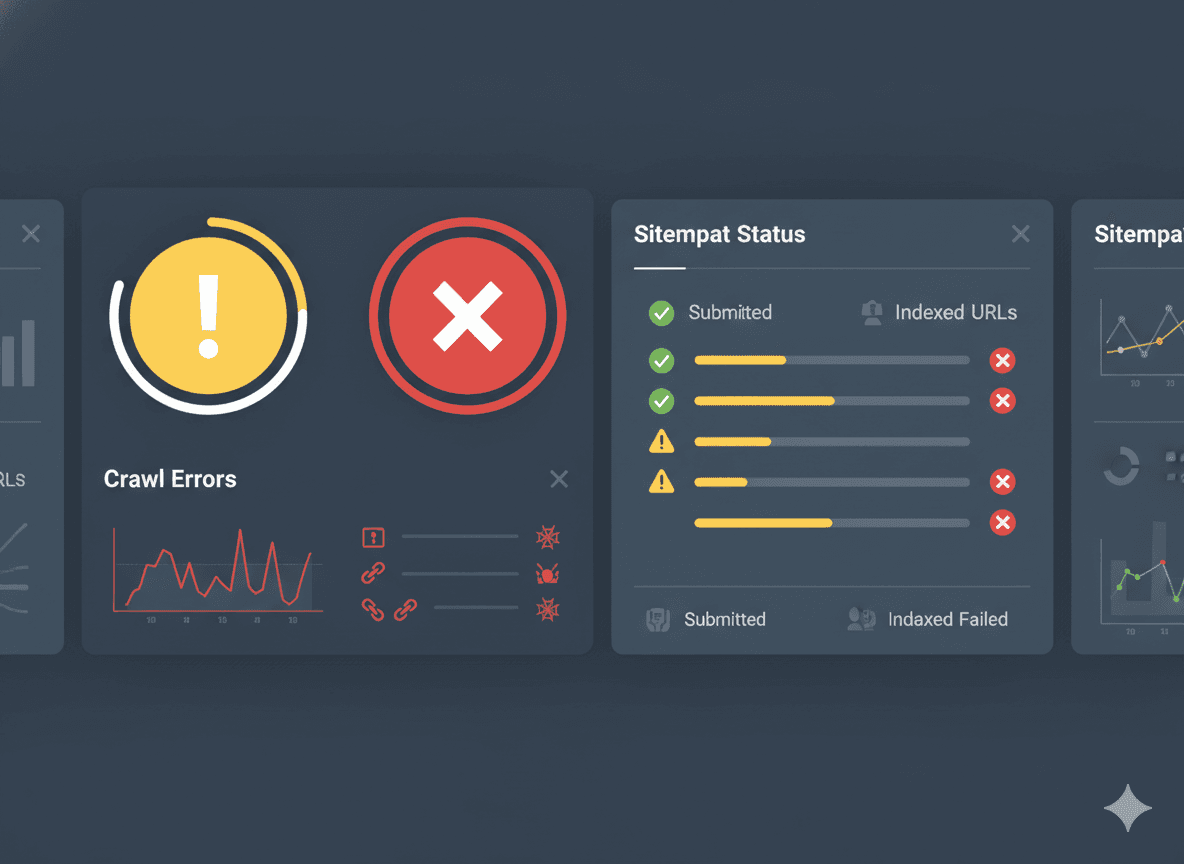 Even with automation, things can go wrong. Here are common errors seen in GSC regarding the shopify sitemap and how to fix them.
# "Couldn't Fetch" This is the most common and frightening error.
-
Cause: Usually a timeout on Google's end or a temporary glitch. It can also happen if you submit the child sitemap instead of the parent
sitemap.xml. -
Fix: Ensure you submitted
sitemap.xml. If you did, simply wait. It often resolves itself within a few days. If it persists, check that your store is not password protected (under Preferences).
# "Submitted URL blocked by robots.txt"
-
Cause: You have a page in your sitemap that your
robots.txtfile is telling Google not to look at. -
Fix: Shopify controls
robots.txt, but you can edit it viarobots.txt.liquid. However, the issue is usually that you have a "Cart" or "Checkout" page appearing where it shouldn't. Review your page visibility settings.
# "Sitemap contains URLs which are accessible via HTTP"
-
Cause: Your sitemap has non-secure links.
-
Fix: Shopify forces SSL (HTTPS) automatically. If you see this, you may have hardcoded a link in a blog post or page description. However, the generated sitemap URLs should always be HTTPS. If not, contact Shopify support.
# Discrepancy Between "Submitted" and "Indexed" In GSC, you might see "1000 Submitted, 800 Indexed."
- Is this bad? Not necessarily. Google rarely indexes 100% of a site. It filters out low-quality, duplicate, or thin content.
- Fix: If the number is vastly different (e.g., 1000 submitted, 10 indexed), you have a quality problem. Review your product descriptions and ensure you aren't using manufacturer descriptions that appear on 50 other websites.
# HTML Sitemap vs. XML Sitemap
Before wrapping up, it is important to clarify a distinction. We have been discussing the XML sitemap (for bots). However, for user experience (UX), you might also want an HTML sitemap.
An HTML sitemap is a regular page on your website listing all your categories and pages. It acts as a "directory" for human visitors.
- Benefit: It helps users find content if the navigation menu is confusing.
- SEO Benefit: It provides excellent internal linking.
Shopify does not generate an HTML sitemap automatically. You must create a new page and manually link your collections, or use a Shopify App like "Sitemap Builder" to generate a page for your footer. While not mandatory for technical indexing, it is a nice "nice-to-have" for overall site architecture.
IX. Summary: Your Checklist for Success
To ensure you are getting the most out of your Shopify sitemap, run through this quick checklist:
-
Verification: Is your site ownership verified in Google Search Console?
-
Submission: Have you submitted
sitemap.xmlto GSC? -
Status Check: Is the status in GSC green ("Success")?
-
Cleanup: Have you deleted old, empty collections?
-
Redirects: Are discontinued products redirected properly?
-
NoIndex: Have you hidden duplicate or utility pages using Metafields to keep the sitemap clean?
Conclusion
The shopify sitemap is the unsung hero of your e-commerce SEO strategy. It works quietly in the background, ensuring that the hard work you put into your products and content is actually seen by the world.
While Shopify's automation takes the heavy lifting out of "creating" the file, you cannot just set it and forget it. By regularly monitoring your sitemap status in Google Search Console and maintaining a clean site architecture, you ensure that Google always has the most up-to-date map of your digital storefront.
Remember, a great store is useless if no one can find the door. Your sitemap is the guide that brings the customers in.
Optimize Your Shopify Sitemap today by logging into Google Search Console and ensuring your latest products are being indexed. If you need assistance with technical SEO or site architecture, the experts at TrueStorefront are here to help you navigate the complexities of e-commerce growth.
Frequently Asked Questions (FAQ)
Q: How often does the Shopify sitemap update?
A: Shopify updates the sitemap automatically in near real-time. When you add a product or publish a blog post, the XML file is updated almost immediately.
Q: Can I use a plugin to create a better sitemap?
A: Generally, no. Shopify does not allow plugins to override the root sitemap.xml file. Some apps create a second sitemap, but this is usually redundant and unnecessary for 99% of stores. Stick to the native Shopify sitemap.
Q: Why are my images not in the sitemap?
A: They likely are. The Shopify sitemap includes image references within the product entries. It does not create a separate sitemap_images.xml file, but the data is embedded within the product sitemap.
Q: Does my password page affect my sitemap?
A: Yes. If your store is password protected (under development), Google cannot crawl your sitemap or your pages. You must remove the storefront password before submitting your sitemap to GSC.