
If you run a Shopify store in the United States, Australia, Canada, New Zealand, or another supported market, you may have considered adding Afterpay as a Buy Now, Pay Later payment option.
Instead of paying the entire order value upfront, eligible customers can split their purchase into multiple payments. With the popular Pay in 4 model, customers typically divide the purchase into four payments over approximately six weeks.
For merchants, Afterpay can provide customers with additional payment flexibility without requiring the store owner to build or manage an installment payment system.
In this guide, we will cover everything you need to know about Shopify Afterpay, including how it works, how to add it to Shopify, supported countries, fees, troubleshooting, and best practices.
I. What Is Shopify Afterpay?
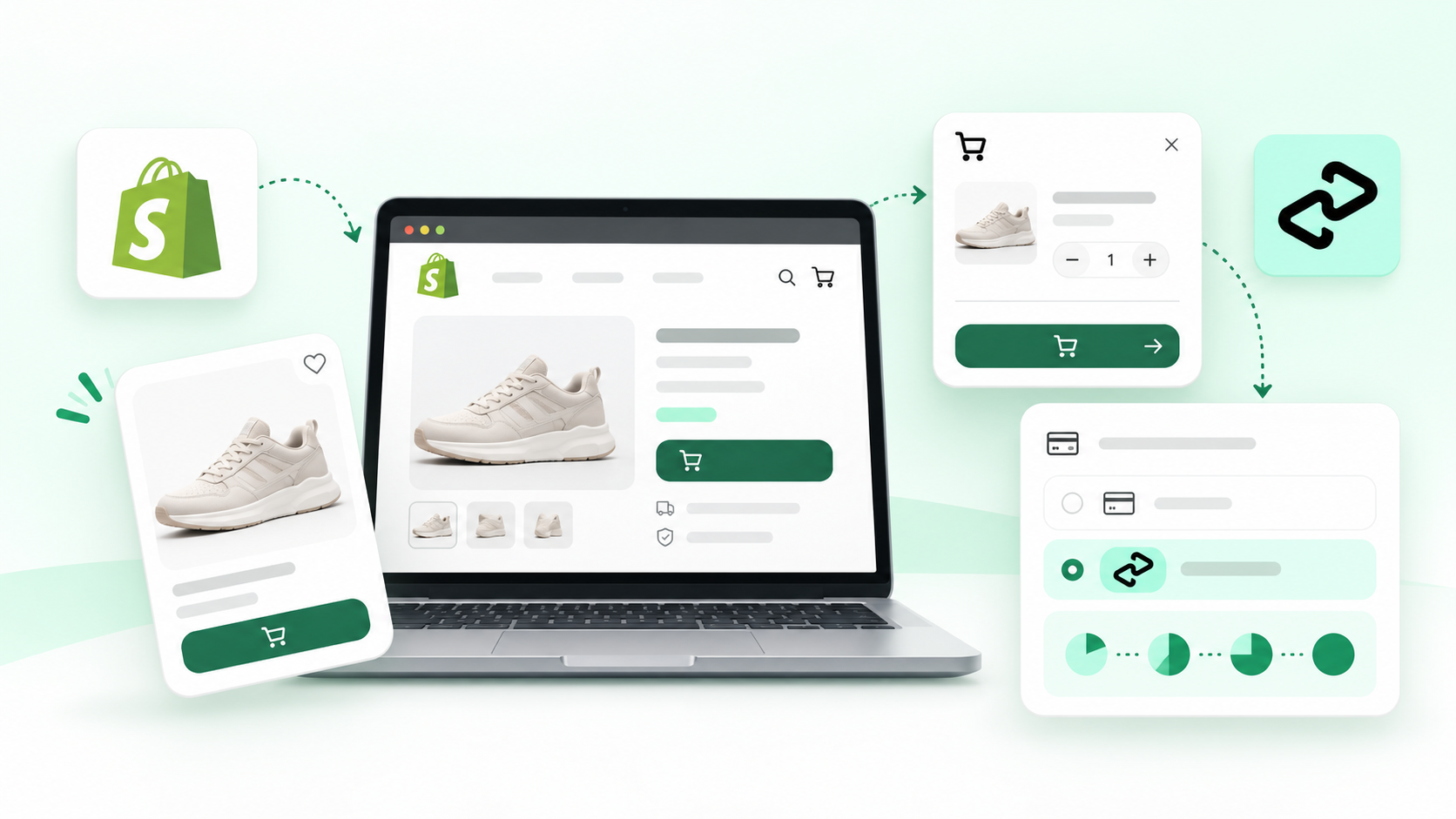
Shopify Afterpay refers to integrating Afterpay's Buy Now, Pay Later payment service with a Shopify store.
Once enabled, eligible customers can select Afterpay during checkout instead of paying the full order amount immediately.
With Afterpay:
Customers get an additional payment option.
Merchants do not need to build their own installment system.
Afterpay manages the BNPL payment process.
Afterpay messaging can appear on product pages, cart pages, and checkout.
Shopify merchants can typically install Afterpay through a payment app rather than developing a custom API integration.
II. How Does Afterpay Work on Shopify?
The customer journey is relatively straightforward.
Step 1: The customer visits your Shopify store
The shopper browses your products as usual.
Step 2: Afterpay messaging appears on the product page
Depending on your configuration, customers may see messaging such as:
Pay in 4 with Afterpay
or:
4 payments of $25 with Afterpay
This makes customers aware of installment options before they reach checkout.
Step 3: The customer adds products to their cart
The customer continues through the standard Shopify checkout flow.
Step 4: Afterpay appears as a payment method
If the order and customer are eligible, Afterpay will appear among the available payment options.
Step 5: The customer selects Afterpay
The shopper chooses Afterpay and completes the required payment authorization process.
Step 6: The order is returned to Shopify
Once payment is approved, the order appears in Shopify and can be fulfilled like other orders.
III. Does Shopify Support Afterpay?
Yes.
Afterpay provides an official integration for Shopify.
The setup process generally includes:
Creating or activating an Afterpay merchant account.
Installing the appropriate Afterpay payment app.
Connecting your Afterpay Business Hub account.
Activating Afterpay inside Shopify Payments settings.
However, Afterpay is not available in every country.
IV. Which Countries Support Afterpay on Shopify?
Afterpay availability depends heavily on the merchant's region.
Commonly supported Shopify markets include:
United States
Australia
New Zealand
Canada
United Kingdom through Clearpay
Availability, branding, onboarding, and payment products can vary by region.
1. Shopify Afterpay in the United States
In the United States, Afterpay is increasingly associated with the Cash App Afterpay brand.
US merchants should make sure they install the correct payment app designed for the American market rather than following setup instructions intended for Australian or Canadian merchants.
2. Shopify Afterpay in Australia
Australia is one of Afterpay's core markets.
Australian Shopify stores can typically integrate Afterpay as long as their merchant account, business information, store location, and currency meet Afterpay's requirements.
3. Shopify Afterpay in Canada
Canadian merchants can also use Afterpay where supported.
The Shopify store location and currency should match the merchant's Afterpay account configuration.
4. Shopify Afterpay in New Zealand
Afterpay is available to eligible Shopify merchants in New Zealand.
As with other supported markets, merchant approval and matching store settings are important.
5. Can You Use Afterpay on Shopify in Vietnam?
Vietnam is not currently one of the main directly supported Afterpay merchant regions.
Simply changing your Shopify currency or installing an Afterpay app does not automatically make a Vietnam-based business eligible for Afterpay.
If your business operates primarily in Vietnam, it is generally better to evaluate payment providers and Buy Now, Pay Later services that officially support the Vietnamese market.
V. Requirements for Adding Afterpay to Shopify
Before installing Afterpay, check the following requirements.
1. An Approved Afterpay Merchant Account
You generally need an active Afterpay merchant account before you can complete the Shopify integration.
During onboarding, you may need to provide:
Business information
Website details
Contact information
Product categories
Settlement information
Business verification documents
Approval requirements can vary by country.
2. A Supported Shopify Store Location
Your Shopify store country should generally match your Afterpay merchant region.
You can review your Shopify business information under:
Shopify Admin → Settings → General
For example:
Australian Afterpay account → Australian store
Canadian Afterpay account → Canadian store
New Zealand Afterpay account → New Zealand store
US Cash App Afterpay account → US store
A region mismatch can prevent Afterpay from appearing correctly.
3. A Compatible Store Currency
Your store currency should also be compatible with the Afterpay account.
Depending on the market, supported currencies may include:
USD
AUD
NZD
CAD
GBP through Clearpay
If your store country, merchant account, and currency do not match, Afterpay may not appear at checkout.
VI. How to Add Afterpay to Shopify
Here is the typical setup process.
Step 1: Create an Afterpay Merchant Account
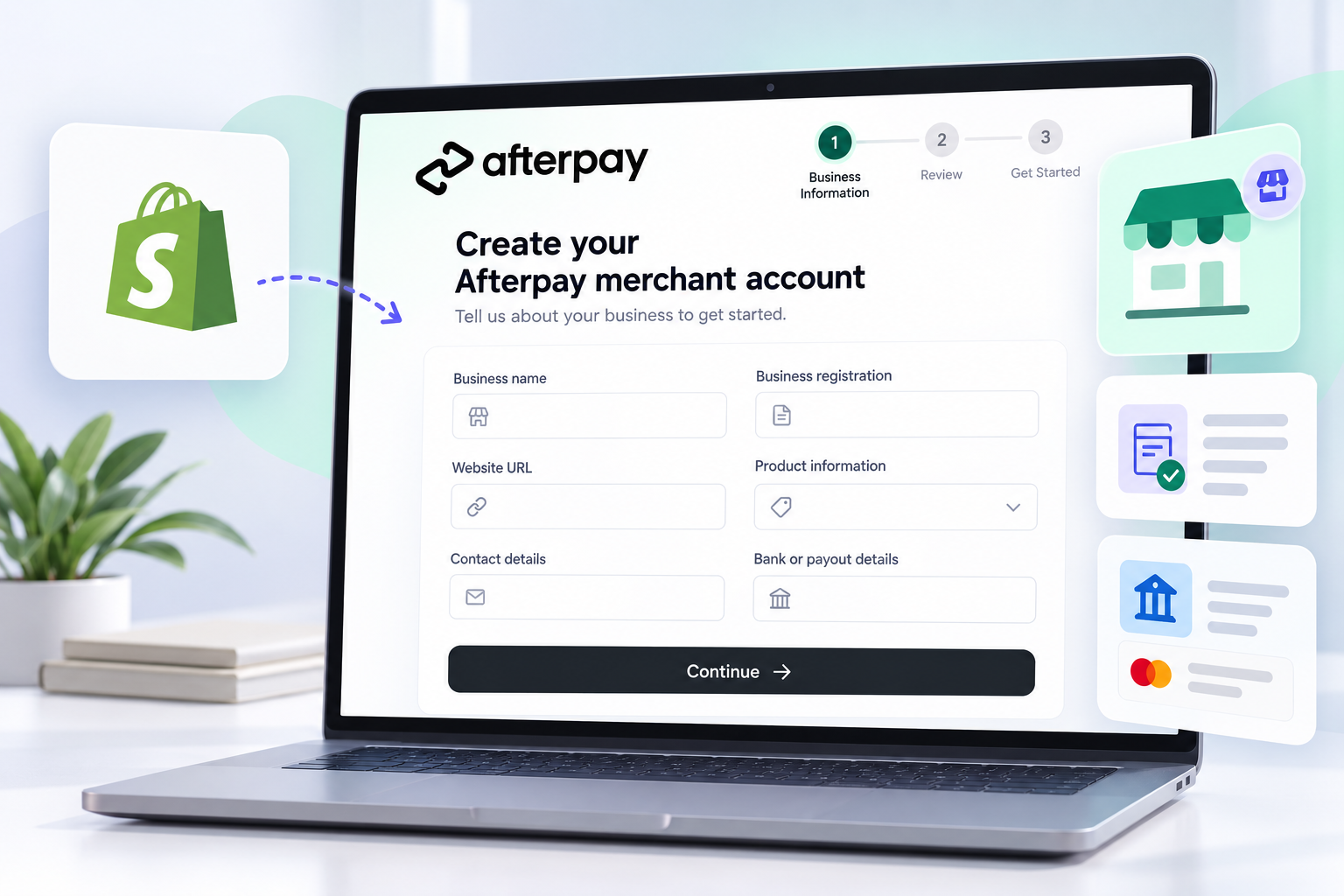
Start by applying for an Afterpay merchant account.
You may be asked for:
Business name
Website URL
Contact details
Business registration information
Product information
Bank or payout details
Your business must usually be reviewed before the payment method becomes fully available.
Step 2: Install the Afterpay Payment App
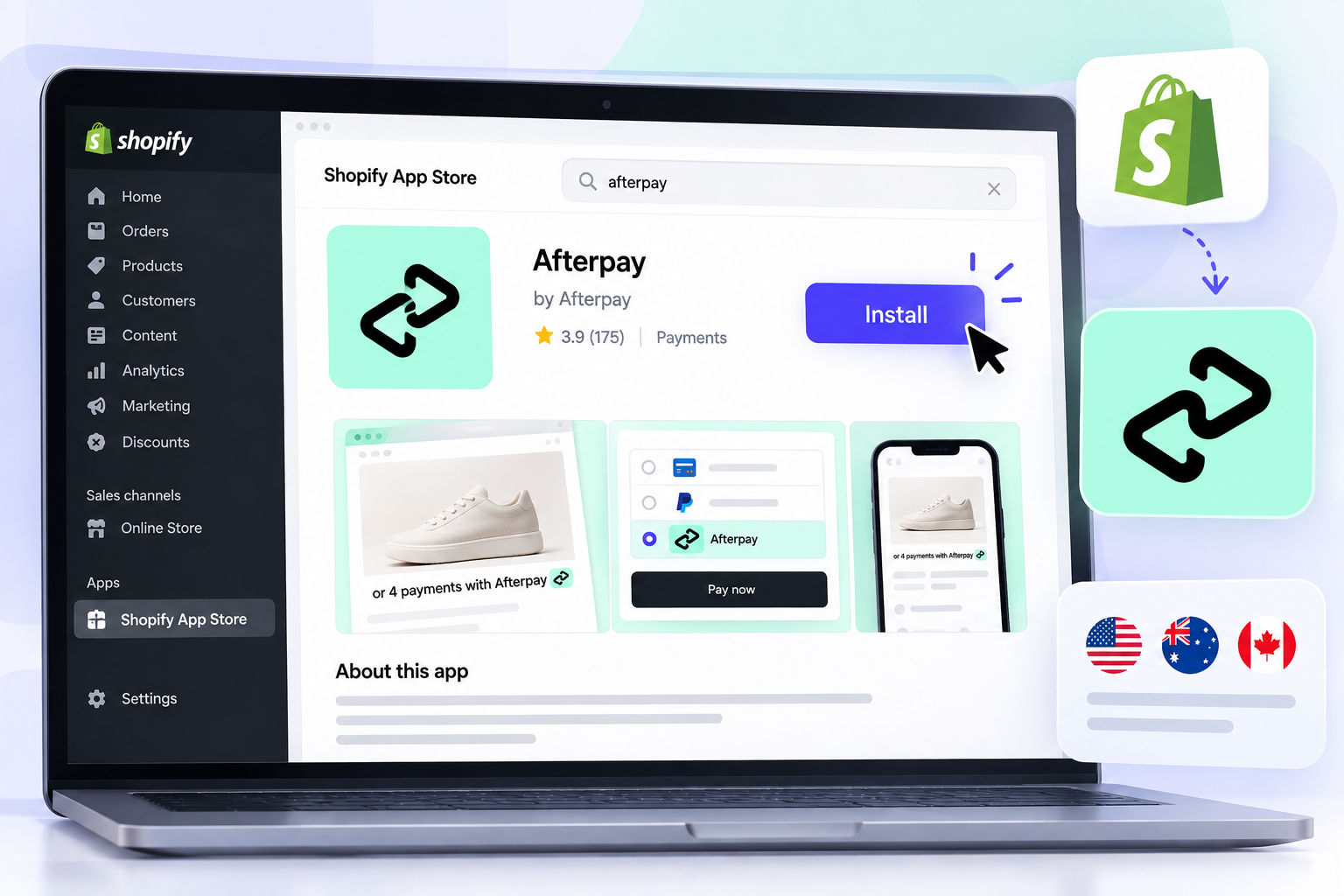
Log in to your Shopify Admin and install the appropriate Afterpay payment app for your region.
This is especially important for US merchants because the US setup may use Cash App Afterpay rather than the same integration used in Australia, Canada, or New Zealand.
Step 3: Connect Your Afterpay Business Account
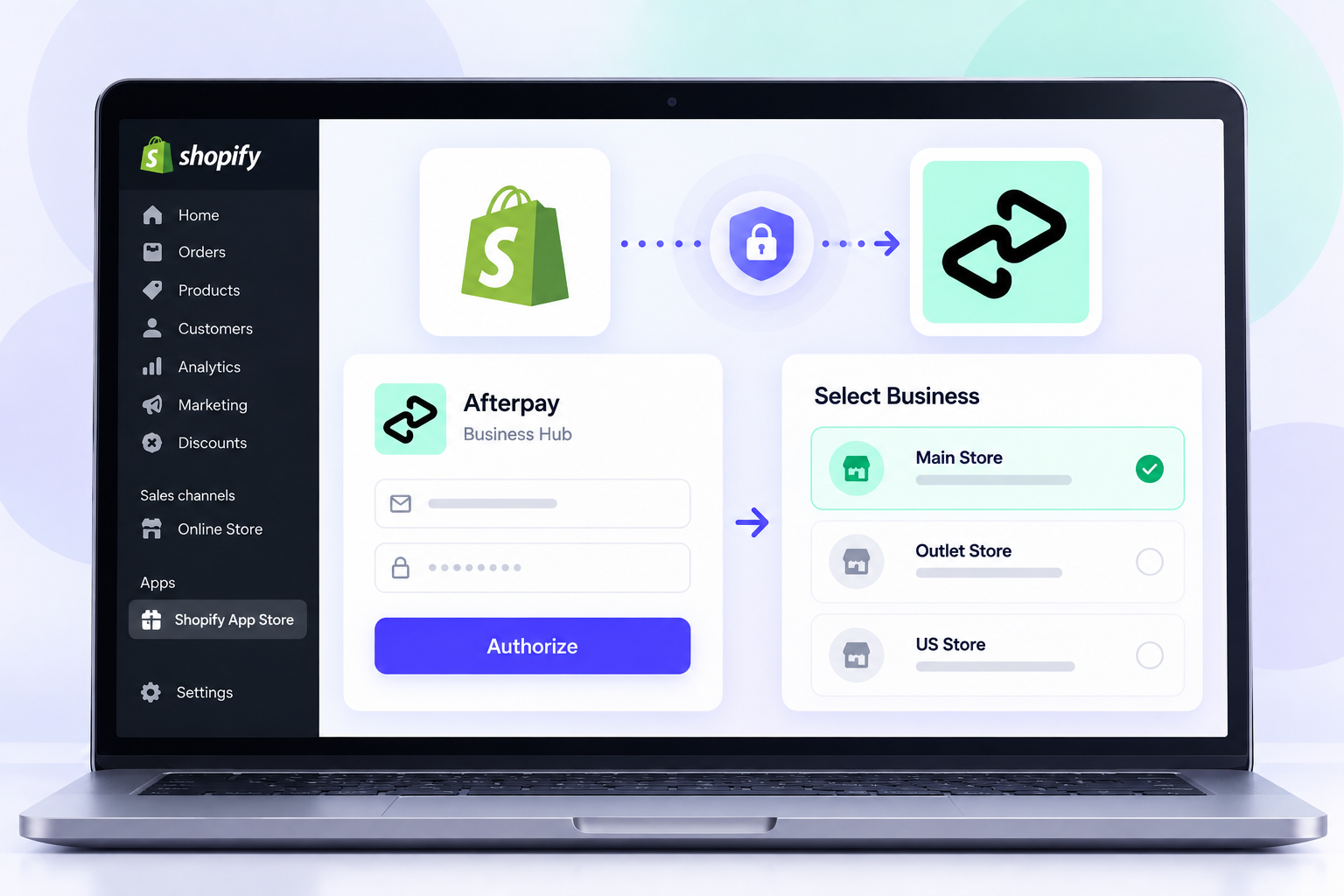
After installing the payment app, Shopify will direct you through the authorization process.
Log in to your Afterpay Business Hub account.
If your account manages multiple businesses, select the correct business to connect to your Shopify store.
Step 4: Activate Afterpay
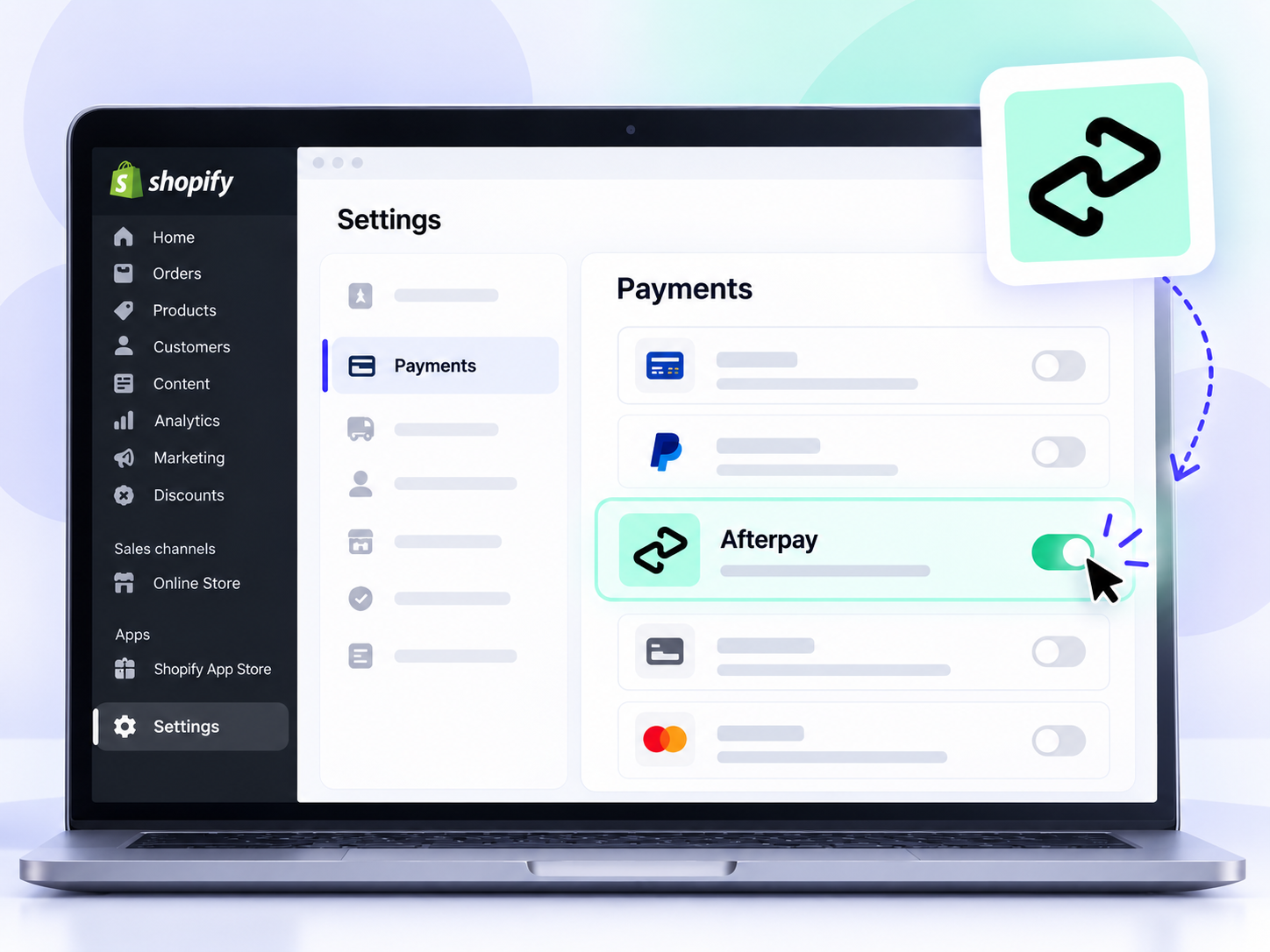
Go to:
Shopify Admin → Settings → Payments
Locate Afterpay and activate the payment method.
Installing the app alone may not be enough. The payment method must also be enabled before customers can use it.
Step 5: Test Your Checkout
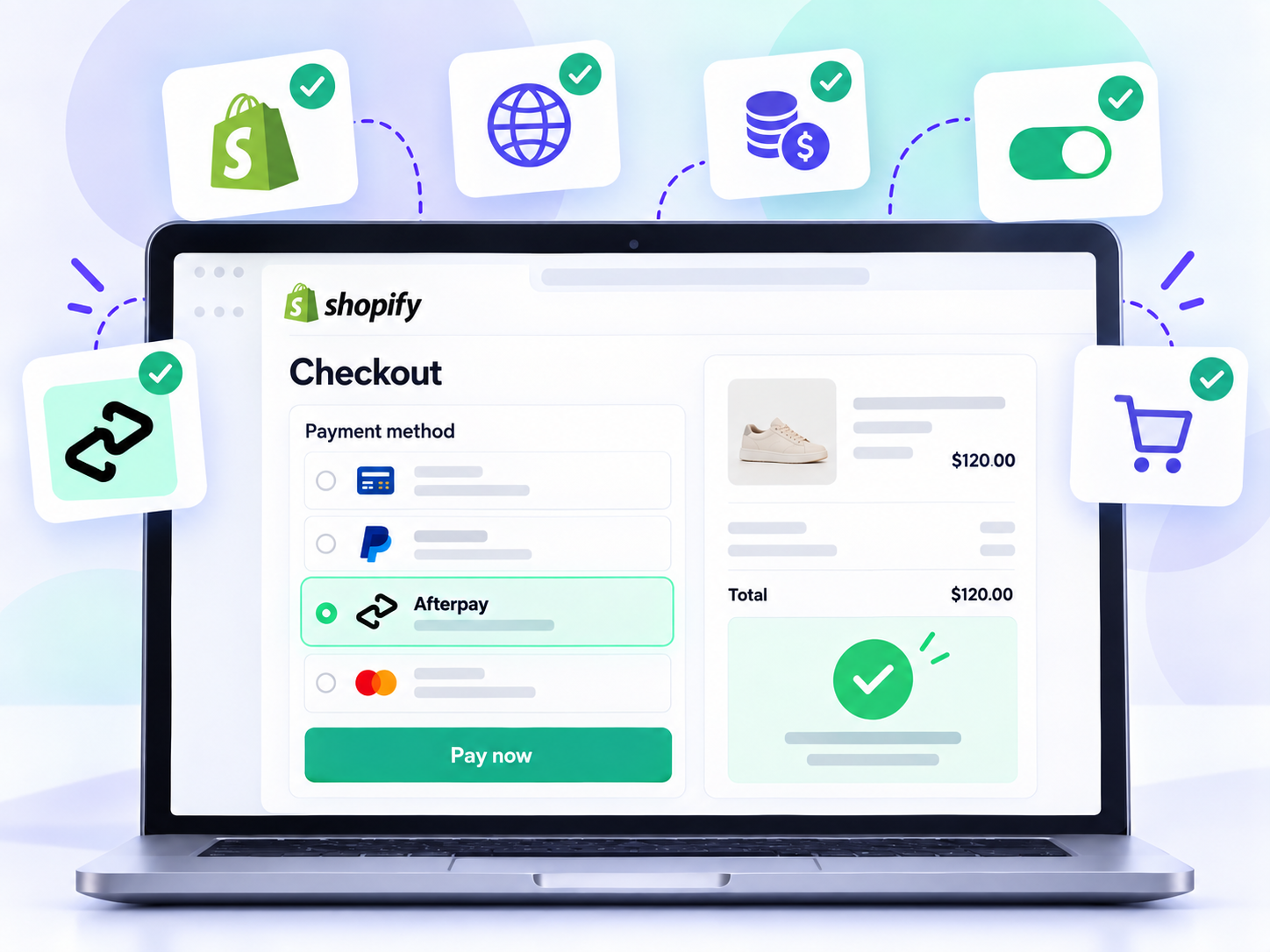
Once Afterpay is activated, create a test shopping cart that meets the expected eligibility requirements.
Proceed to checkout and verify that Afterpay appears among the available payment methods.
If it does not appear, review:
Merchant account status
Shopify store country
Store currency
Payment activation status
Correct regional Afterpay app
Order eligibility
VII. How to Display Afterpay on Shopify Product Pages
Adding Afterpay only at checkout means customers may not discover the payment option until the final stage of the purchase journey.
A better implementation is to display Afterpay messaging earlier.
Common locations include:
Homepage
Collection pages
Product pages
Cart page
Checkout
FAQ page
VIII. What Is Afterpay On-Site Messaging?
Afterpay provides tools for displaying BNPL messaging directly on your storefront.
For example, under a product price you might display:
$200
or 4 payments of $50 with Afterpay
This lets customers understand the payment structure before they add the product to their cart.
For many Shopify merchants, using the official messaging app is preferable to manually hard-coding Afterpay logos and installment calculations into the theme.
IX. Where Should You Display Afterpay on Shopify?
1. Homepage
You can introduce the payment option with a short message such as:
Shop now. Pay over time with Afterpay.
The goal is simply to make shoppers aware that Afterpay is available.
2. Collection Pages
If your theme allows it, subtle Afterpay messaging can also be displayed on product cards.
However, avoid adding too much visual clutter.
3. Product Pages
This is one of the most important placements.
Afterpay messaging should usually appear close to:
Product price
Variant selector
Add to Cart button
For example:
$300
or 4 payments of $75 with Afterpay
This helps customers evaluate payment affordability while making a purchase decision.
4. Cart Page
The cart is another valuable location because the total order amount may be significantly higher than the price of a single product.
Displaying Afterpay at the cart level can show customers that the entire eligible purchase may be split into multiple payments.
5. Checkout
At checkout, Afterpay should appear as a payment option for eligible customers and transactions.
X. How Much Does Afterpay Cost on Shopify?
There are several costs merchants need to consider.
1. Afterpay Merchant Fees
Afterpay may charge merchants transaction or processing fees.
However, there is not necessarily one universal fee that applies to every merchant.
Pricing can depend on factors such as:
Country
Merchant agreement
Business category
Sales volume
Afterpay product
Contract terms
The exact rate should be confirmed inside your Afterpay merchant agreement or Business Hub.
2. Shopify Transaction Fees
Shopify may also charge third-party transaction fees when customers use an external payment provider.
These fees can vary depending on:
Shopify plan
Store configuration
Payment provider
Market
Therefore, merchants should calculate the full payment cost rather than only looking at Afterpay's processing fee.
A simplified calculation is:
Total payment cost = Afterpay fee + applicable Shopify transaction fee + related payment costs
XI. Does Afterpay Replace Shopify Payments?
Not necessarily.
Afterpay is generally better viewed as an additional payment option rather than a complete replacement for Shopify Payments.
A store may offer several payment methods at the same time, including:
Credit cards
Debit cards
Shopify Payments
Shop Pay
PayPal
Afterpay
Other local payment methods
The right payment stack depends on your customers and target markets.
XII. Benefits of Using Afterpay on Shopify
1. More Payment Flexibility
Customers do not always want to pay the full purchase amount upfront.
Afterpay gives eligible shoppers another payment option.
This can be particularly useful for stores selling higher-priced products.
2. Lower Perceived Upfront Cost
Consider a product priced at:
$400
For some customers, seeing $400 as a single payment may create purchase hesitation.
If Afterpay messaging shows smaller scheduled payments, the purchase may appear more manageable from a cash-flow perspective.
The product price has not changed, but the way the payment is structured has.
3. Potential Conversion Benefits
Buy Now, Pay Later services are often used by merchants to reduce payment friction.
However, conversion improvements should not be assumed.
Performance depends on factors such as:
Industry
Product pricing
Customer demographics
Traffic quality
Store design
Checkout experience
The best approach is to measure performance using your own store data.
4. No Need to Build an Installment System
Building installment functionality yourself can involve:
Payment infrastructure
Fraud prevention
Credit risk
Repayment management
Compliance
Customer account management
Afterpay handles much of this infrastructure.
5. Easy Shopify Integration
The integration is relatively straightforward for supported merchants.
Most stores can use the payment app and on-site messaging tools without building a custom payment API.
XIII. Disadvantages of Shopify Afterpay
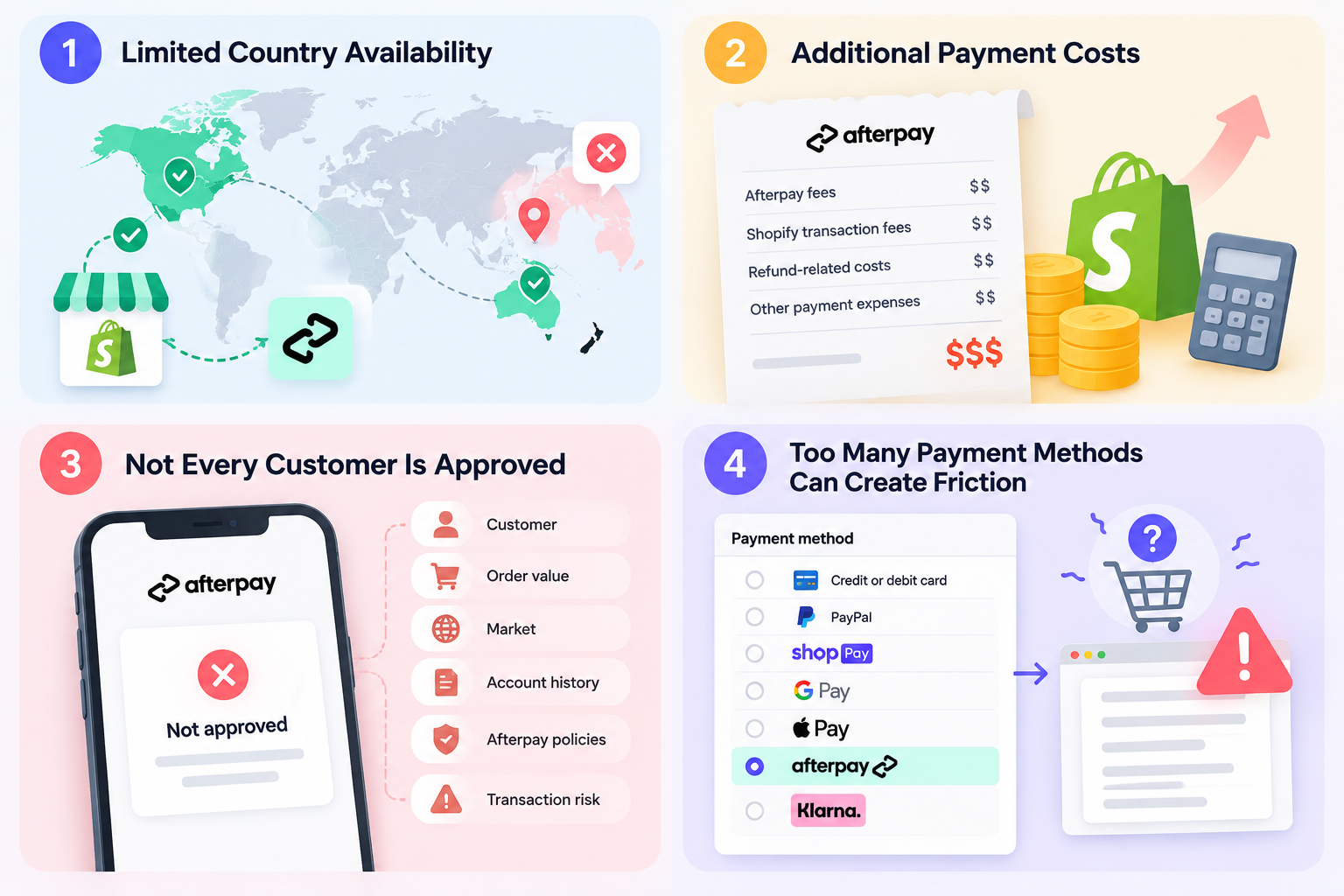
Afterpay is not ideal for every merchant.
Limited Country Availability
The biggest limitation is geographic availability.
Your business and Shopify store must generally operate in a market supported by Afterpay.
Additional Payment Costs
Merchants may need to pay:
Afterpay fees
Shopify third-party transaction fees
Refund-related costs
Other payment expenses
If your margins are already thin, BNPL fees can materially affect profitability.
Not Every Customer Is Approved
Offering Afterpay does not mean every transaction will automatically be approved.
Eligibility can depend on:
Customer
Order value
Market
Account history
Afterpay policies
Transaction risk
Your store should avoid implying that every customer is guaranteed access to installment payments.
Too Many Payment Methods Can Create Friction
Offering more payment methods is not always better.
A checkout containing too many options can become visually overwhelming.
Merchants should prioritize payment methods based on actual customer demand.
XIV. Why Is Afterpay Not Showing on Shopify?
This is one of the most common problems merchants experience.
1. Your Merchant Account Is Not Active
Installing the app does not automatically mean your Afterpay merchant account has been approved.
Check your merchant account status first.
2. Afterpay Has Not Been Activated
Go to:
Shopify Admin → Settings → Payments
Confirm that Afterpay is enabled.
If the app is installed but the payment method is inactive, it may not appear during checkout.
3. Your Store Currency Is Incorrect
A currency mismatch can prevent Afterpay from displaying correctly.
For example, an Australian merchant account generally needs settings compatible with the Australian Afterpay market.
4. Your Store Country Is Incorrect
The Shopify store country should align with the Afterpay merchant region.
Review your business address under:
Settings → General
5. You Installed the Wrong Afterpay App
US merchants should be particularly careful here.
The US setup may use Cash App Afterpay, while merchants in other countries may use a different regional integration.
6. The Order Is Not Eligible
Afterpay availability can also depend on transaction-level conditions.
Factors can include:
Order value
Customer eligibility
Product type
Country
Merchant settings
As a result, Afterpay may appear for some transactions and not others.
XV. Afterpay Is Not Showing on the Product Page
This is different from Afterpay not appearing at checkout.
Checkout payment integration and storefront messaging are separate parts of the implementation.
If Afterpay works at checkout but does not appear on product pages, check the following:
Is the Afterpay On-Site Messaging app installed?
Is the app embed enabled?
Has the Afterpay block been added to the product template?
Does your theme use a custom price component?
Is the product price eligible?
Did you recently change or update your Shopify theme?
Always test both desktop and mobile layouts.
XVI. How to Optimize Afterpay on Shopify
Installing Afterpay is only the first step.
You should also integrate the payment method into the broader shopping journey.
1. Display Afterpay Near the Product Price
This is usually the most contextually relevant location.
A customer can see:
Product Price → Installment Option → Add to Cart
without searching for payment information.
2. Keep the Messaging Subtle
Afterpay should support the buying experience, not dominate it.
Keep the messaging:
Clear
Short
Consistent
Easy to read
Visually aligned with your store
3. Add Messaging to the Cart
The installment amount may change based on the total cart value.
Showing Afterpay messaging in the cart gives customers a more accurate view of their potential payment schedule.
4. Add an Afterpay FAQ Section
Useful questions include:
What is Afterpay?
How does Afterpay work?
Can I return an order purchased with Afterpay?
Is everyone eligible for Afterpay?
When will my order ship?
Does Afterpay affect shipping?
A clear FAQ can reduce customer uncertainty before checkout.
5. Measure Real Business Results
After implementing Afterpay, monitor:
Conversion rate
Checkout completion rate
Average order value
Revenue per visitor
Afterpay payment share
Refund rate
Contribution margin
Repeat purchase rate
Do not judge the success of Afterpay only by the number of customers using it.
For example, if Afterpay increases average order value but the additional payment fees reduce your contribution margin, the overall financial impact may be less positive than it initially appears.
XVII. Shopify Afterpay vs Shop Pay Installments
Afterpay and Shop Pay Installments both provide payment flexibility, but they are different products.
Feature | Afterpay | Shop Pay Installments |
|---|---|---|
Ecosystem | Afterpay / Cash App | Shopify / Shop Pay |
Shopify Integration | Payment app | Shopify ecosystem integration |
Availability | Depends on market | Depends on Shopify market and eligibility |
Merchant Account | Afterpay account required | Shopify eligibility required |
Customer Branding | Afterpay / Cash App Afterpay | Shop Pay |
Pricing | Depends on merchant agreement | D epends on Shopify terms |
The better option depends on your business.
Consider:
Customer demand
Market availability
Fees
Conversion
Average order value
Profit margin
Checkout experience
XVIII. Is Afterpay Right for Your Shopify Store?
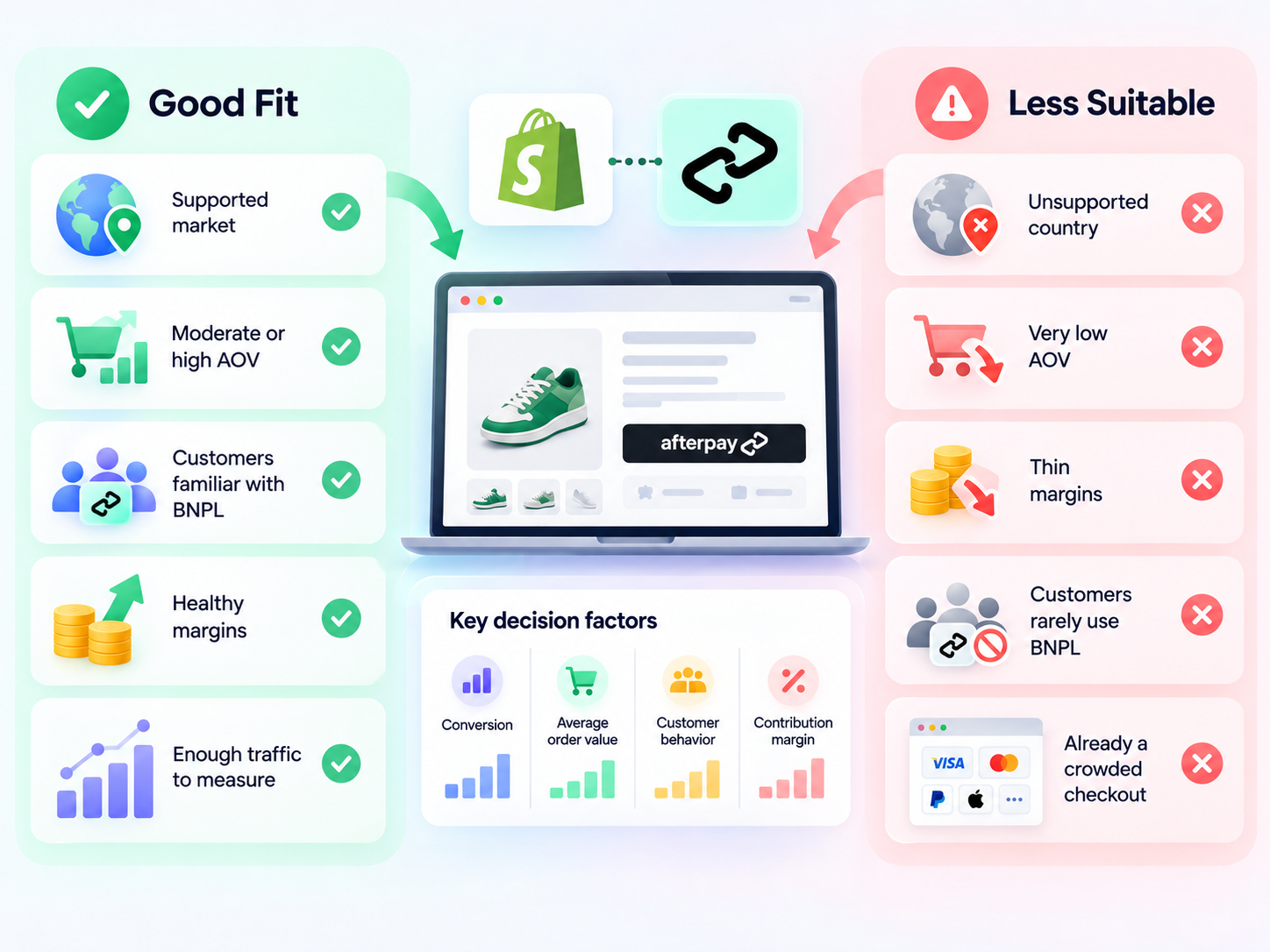
Afterpay may be a strong option if:
You operate in a supported market.
Your products have a moderate or high average order value.
Your customers are familiar with Buy Now, Pay Later.
Your margins can absorb payment fees.
You have enough traffic to measure its impact.
Afterpay may be less suitable if:
Your business operates in an unsupported country.
Your average order value is very low.
Your margins are extremely thin.
Your customers rarely use BNPL services.
Your checkout already contains too many payment methods.
Ultimately, the decision should be based on conversion, average order value, customer behavior, and contribution margin.
XIX. Shopify Afterpay Setup Checklist
Before launching, review this checklist:
✓ Afterpay merchant account approved
✓ Shopify store country matches your Afterpay market
✓ Store currency is compatible
✓ Correct Afterpay payment app installed
✓ Afterpay Business Hub connected
✓ Afterpay activated under Shopify Payments
✓ Checkout tested successfully
✓ Product page messaging configured
✓ Cart messaging configured if needed
✓ Mobile layout tested
✓ FAQ page updated
✓ Refund workflow reviewed
✓ Conversion and AOV tracking configured
XX. Shopify Afterpay FAQ
Does Afterpay work with Shopify?
Yes. Afterpay provides an official Shopify integration that allows eligible merchants to add Afterpay as a payment method.
How do I add Afterpay to Shopify?
The typical process is:
Create an Afterpay merchant account.
Install the correct Afterpay payment app.
Connect your Afterpay Business Hub.
Activate Afterpay under Shopify Payments.
Test the checkout.
Can I add Afterpay to Shopify without coding?
Yes.
Most Shopify merchants can use the official payment integration and on-site messaging tools without developing a custom API integration.
Is Afterpay free for Shopify merchants?
No.
Afterpay may charge merchant processing fees.
Shopify may also apply third-party transaction fees depending on your Shopify plan and payment configuration.
Always review the current pricing for both platforms.
Why is Afterpay not showing at checkout?
Common causes include:
Merchant account not approved
Afterpay not activated
Store currency mismatch
Store country mismatch
Incorrect regional app
Customer or order not eligible
Can I use Afterpay and Shopify Payments together?
In many cases, yes.
Afterpay can function as an additional payment option alongside other Shopify payment methods.
However, transaction fees can vary depending on which provider processes the payment.
Can I use Afterpay on Shopify in Vietnam?
Afterpay is not currently one of the primary directly supported merchant payment options for Vietnam-based Shopify stores.
Vietnamese merchants should evaluate alternative BNPL or payment providers that officially support their market.
Final Thoughts
Shopify Afterpay can be a useful addition to a Shopify payment stack for merchants operating in supported markets.
The setup process is relatively simple:
Create an Afterpay merchant account → Install the payment app → Connect your account → Activate Afterpay → Test checkout.
For better results, merchants should also display Afterpay messaging on product and cart pages rather than waiting until checkout to introduce the payment option.
However, BNPL should not be evaluated only by whether customers use it.
The more important equation is:
Market availability → Payment fees → Conversion rate → Average order value → Contribution margin
If Afterpay improves both the customer experience and the economics of your store, it can become a valuable part of your Shopify payment strategy.
Afterpay availability, pricing, eligibility, branding, and merchant requirements may change by country. Always review the latest Shopify and Afterpay documentation before implementing the integration.